
Database Migration
Learn how to generate and manage database migrations in StackRender, including creating, applying, and rolling back schema changes safely across environments.
What is a Database Migration?
A database migration is a versioned change to your database schema. It allows you to modify your database structure over time in a controlled and consistent way.
Migrations are commonly used to:
- Create or update tables
- Add, modify, or remove columns
- Define relationships and constraints
Each migration represents a specific step in your database evolution and can be applied or rolled back when needed. This makes it easier to keep your database in sync across different environments like development, staging, and production.
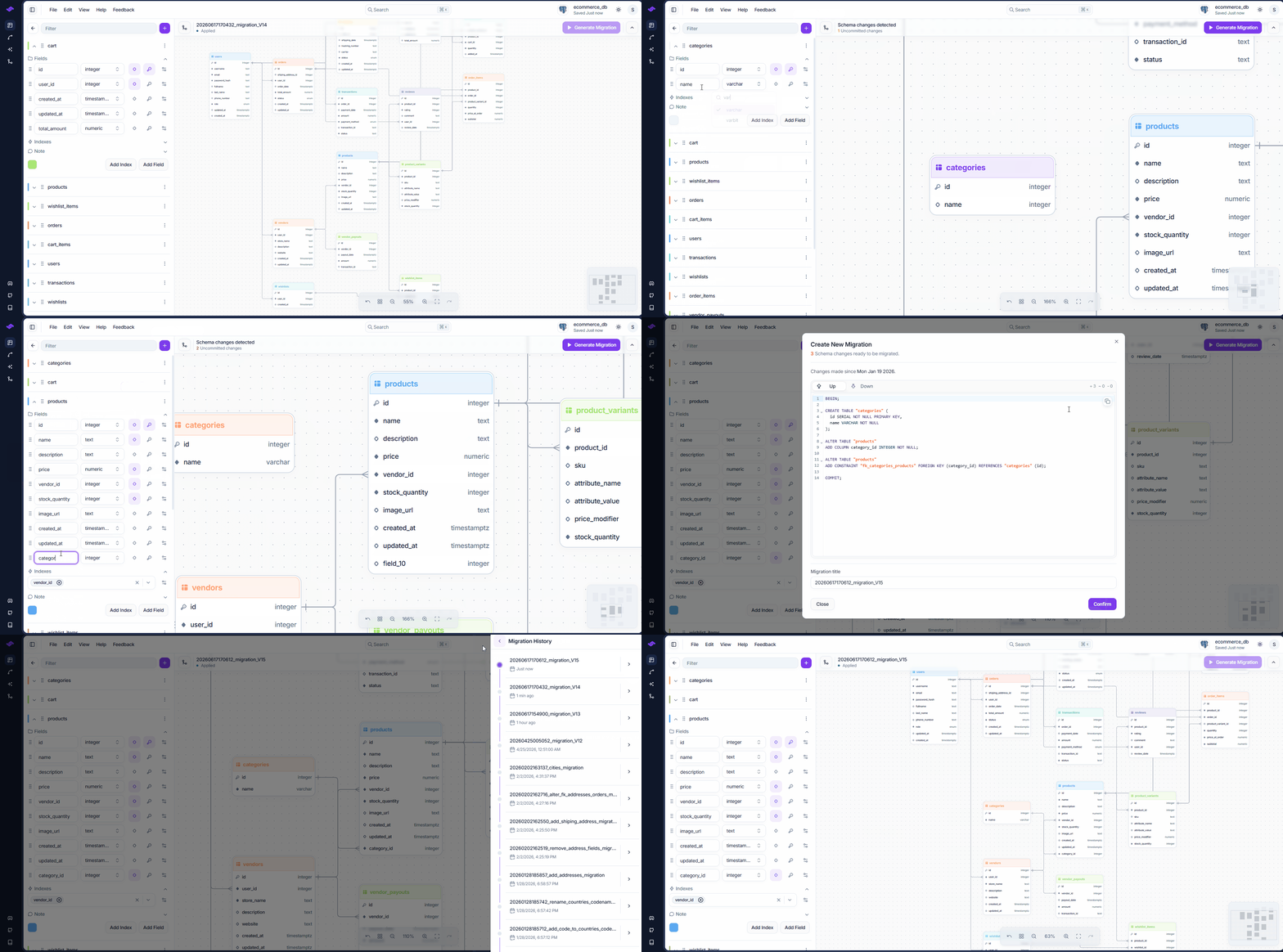
In StackRender, migrations are generated and tracked automatically from the ER Diagram changes, helping you safely manage schema changes without losing control of your data.
Generate a Migration
Whenever you make changes to your database diagram, such as creating a table, adding or modifying a column, defining relationships, or removing database objects, StackRender automatically detects those changes in real time.
-
Above the database diagram, you'll find the Migration Bar, which keeps track of all pending schema changes. Once you're ready, click Generate Migration to create a new migration.
 This opens the Migration Preview dialog, where you can review the generated migration before confirming it. Each migration consists of two SQL scripts:
-
Up Script – Applies the migration by updating your database schema from version N to version N + 1.
-
Down Script – Reverts the migration by rolling your database schema back from version N to version N - 1.
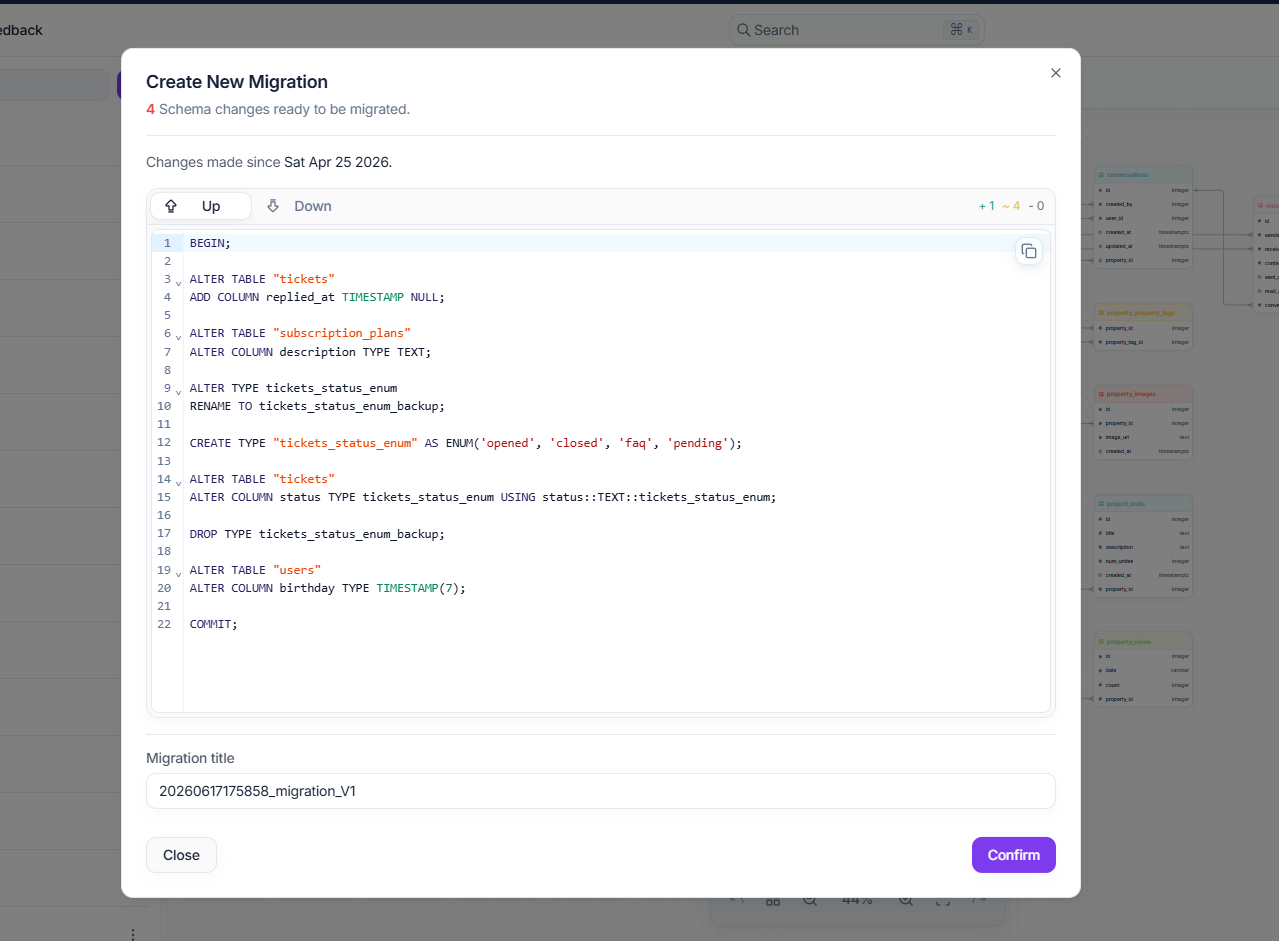
Reviewing both scripts allows you to verify that the generated SQL accurately reflects the changes you made to your database diagram. You can also provide a descriptive title to make the migration easier to identify later.
Once you confirm the migration, it becomes an immutable part of your database's version history and is added to the Migration History. This ensures that every schema change is traceable and reproducible across all environments. Confirmed migrations cannot be edited or deleted individually; they can only be removed by deleting the entire database.
Migration History
The Migration History provides a complete, chronological record of every confirmed migration in your database.
To open it, click Migration History in the Migration Bar. A drawer opens on the right side of the screen, listing all applied migrations from oldest to newest.
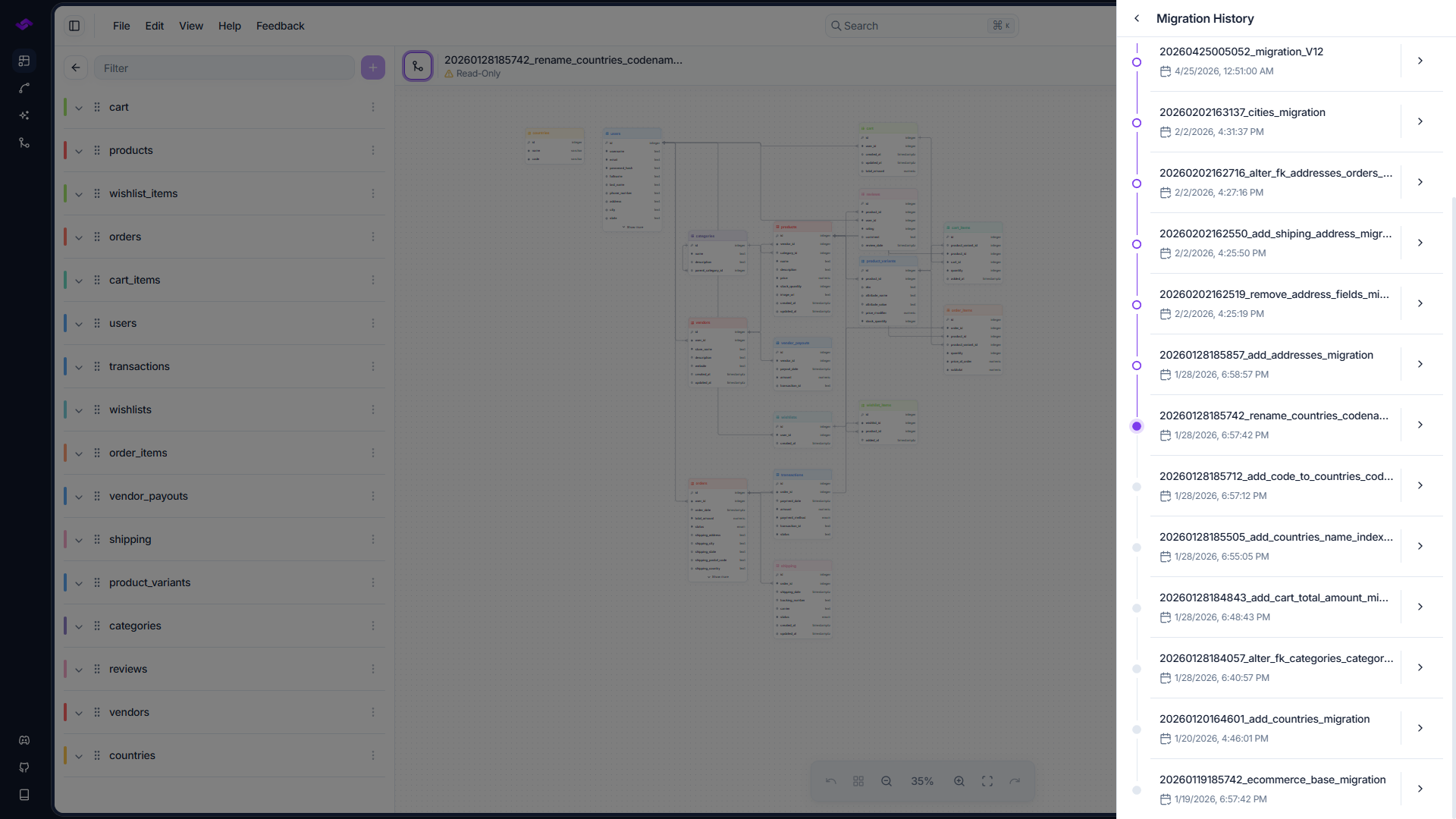
Selecting a migration displays its details, including:
- Migration Information – View the migration title, version, and creation date.
- Up & Down Scripts – Preview the SQL used to apply or roll back the migration.
- Schema Snapshot – Visualize your database schema exactly as it existed after that migration was applied.
The Migration History allows you to review the evolution of your database over time, inspect previous schema changes, and understand how your database has progressed from one version to the next.