
Database
Learn how to create and manage database schema diagrams inside StackRender.
Create new Database
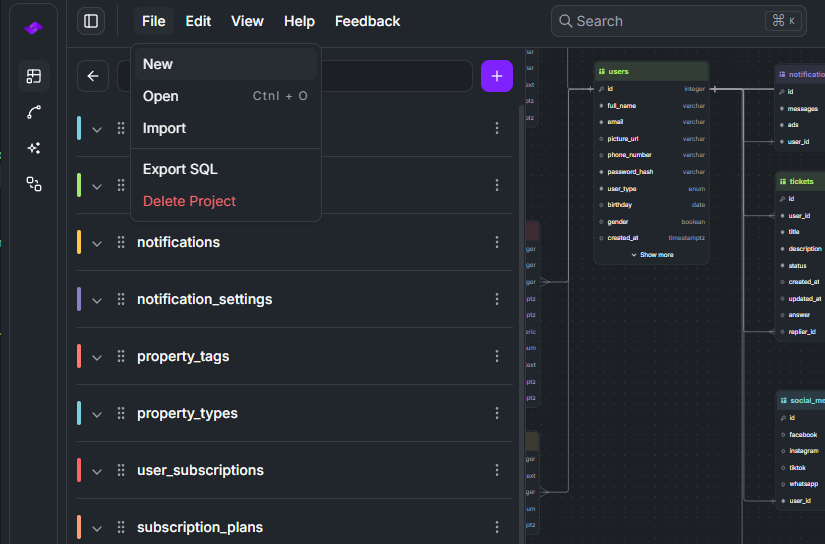
Head to StackRender Studio. If a previous diagram is loaded, go to File → New. The Create New Database dialog will then appear.
When the Create Database dialog appears, provide a name for your database and choose the preferred database dialect.
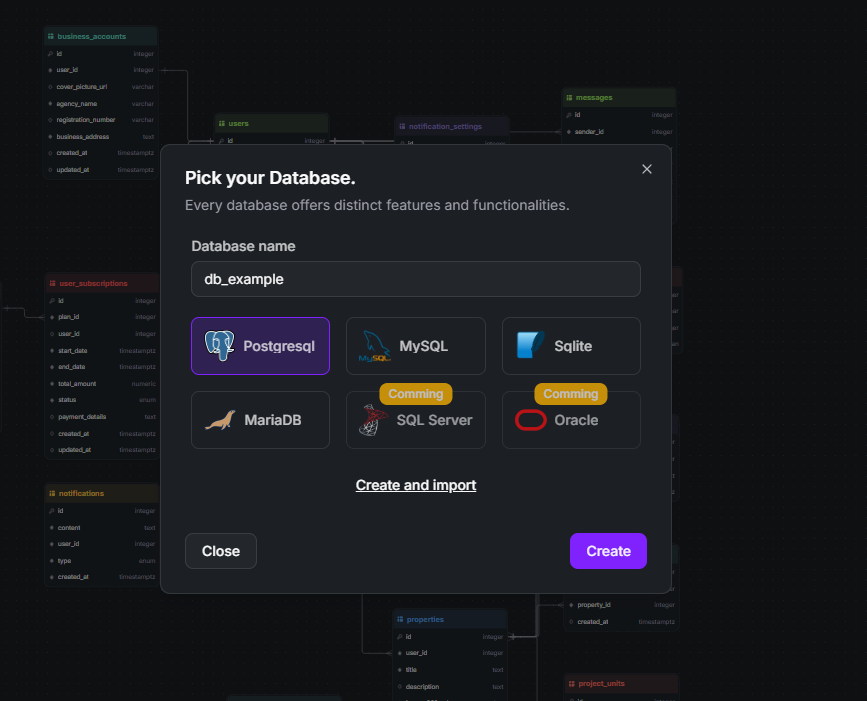 If you already have an existing database schema, click Create and Import to open the Import Database dialog.
Supported Dialects
- PostgreSQL
- MySQL
- MariaDB
- SQLite
Each database dialect has its own data types and attributes. We’ll explore these differences in more detail in the Data Types section.
Open Database
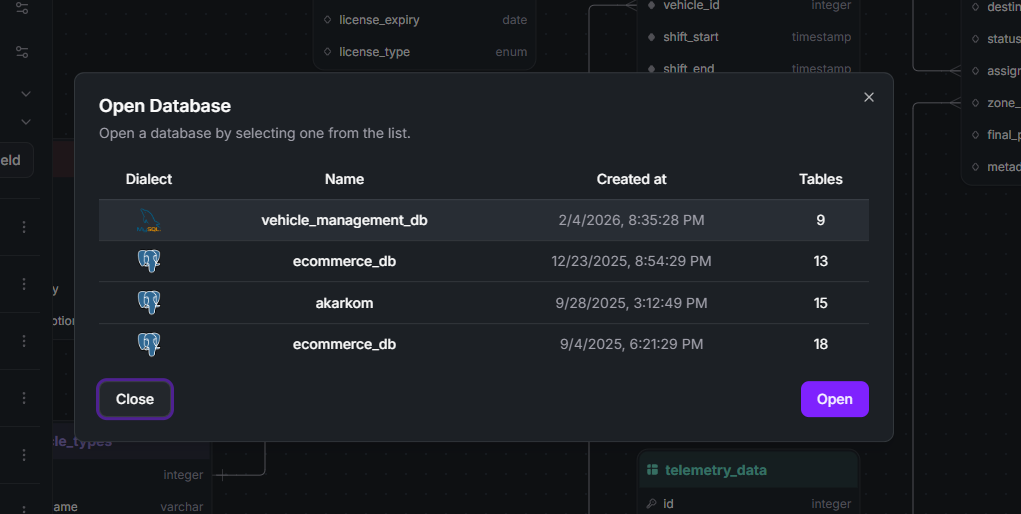
To open another database diagram, navigate to File → Open, or use the Ctrl + O shortcut on Windows. This will open the Open Databases dialog.
Rename Database
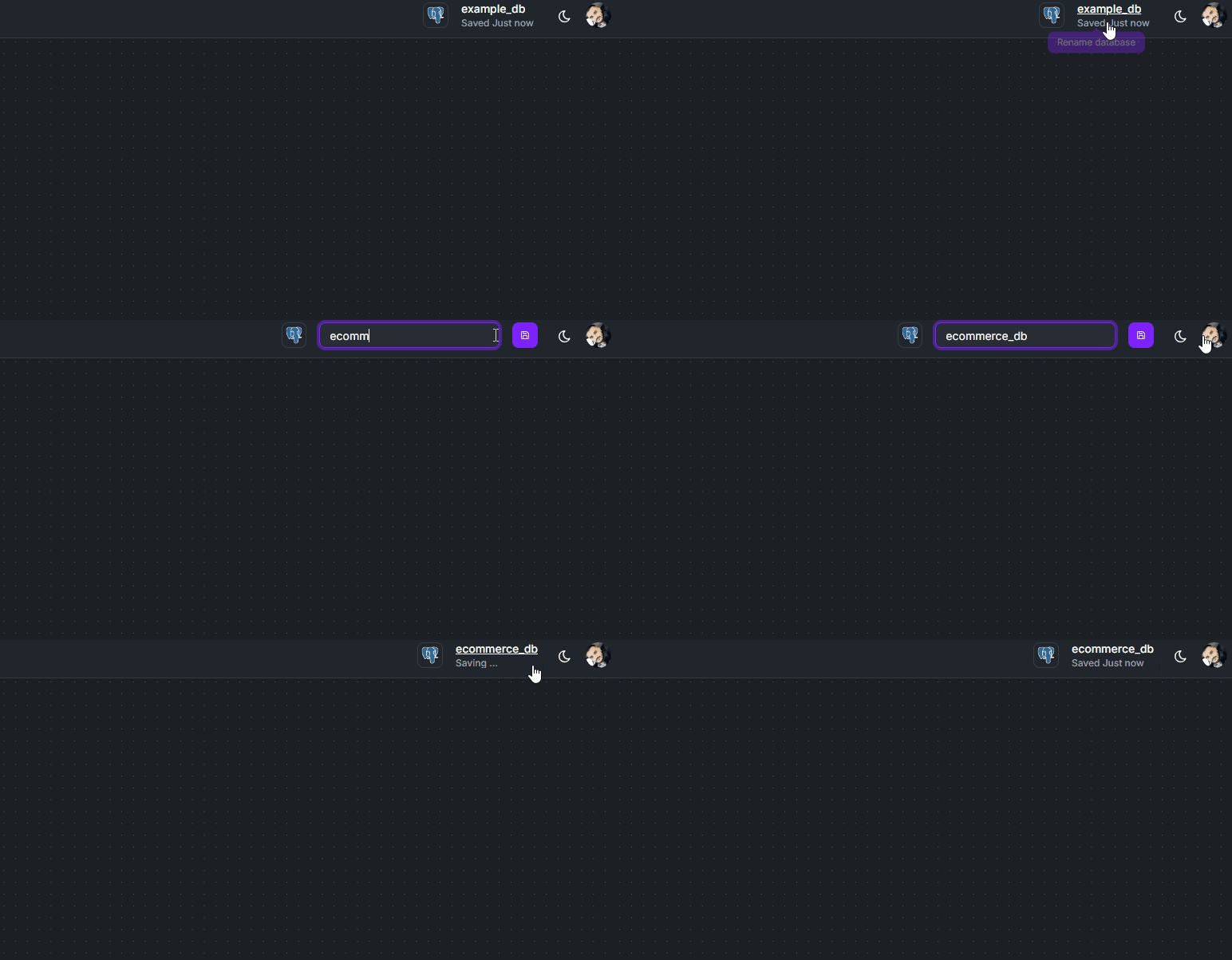
To rename a database:
- Go to the top-right corner of StackRender Studio.
- Double-click the database name in the header.
- Enter the new name in the input field and save.
Data Persistence
Autosave & Sync
All database diagrams are stored in the local browser database stackrender.sqlite. If the connection is lost while working, changes are saved locally and will automatically sync with the cloud once the connection is restored.
Self Hosted
StackRender is a free and open-source database schema editor built with the vision of automating database development workflows. You can self-host StackRender on your own infrastructure to run and manage it within your environment.
Table & Fields
Learn how to create and manage tables and fields in StackRender to build and organize your database schema. This guide explains how to define tables, add fields, and structure your data using the diagram editor.